Introduction
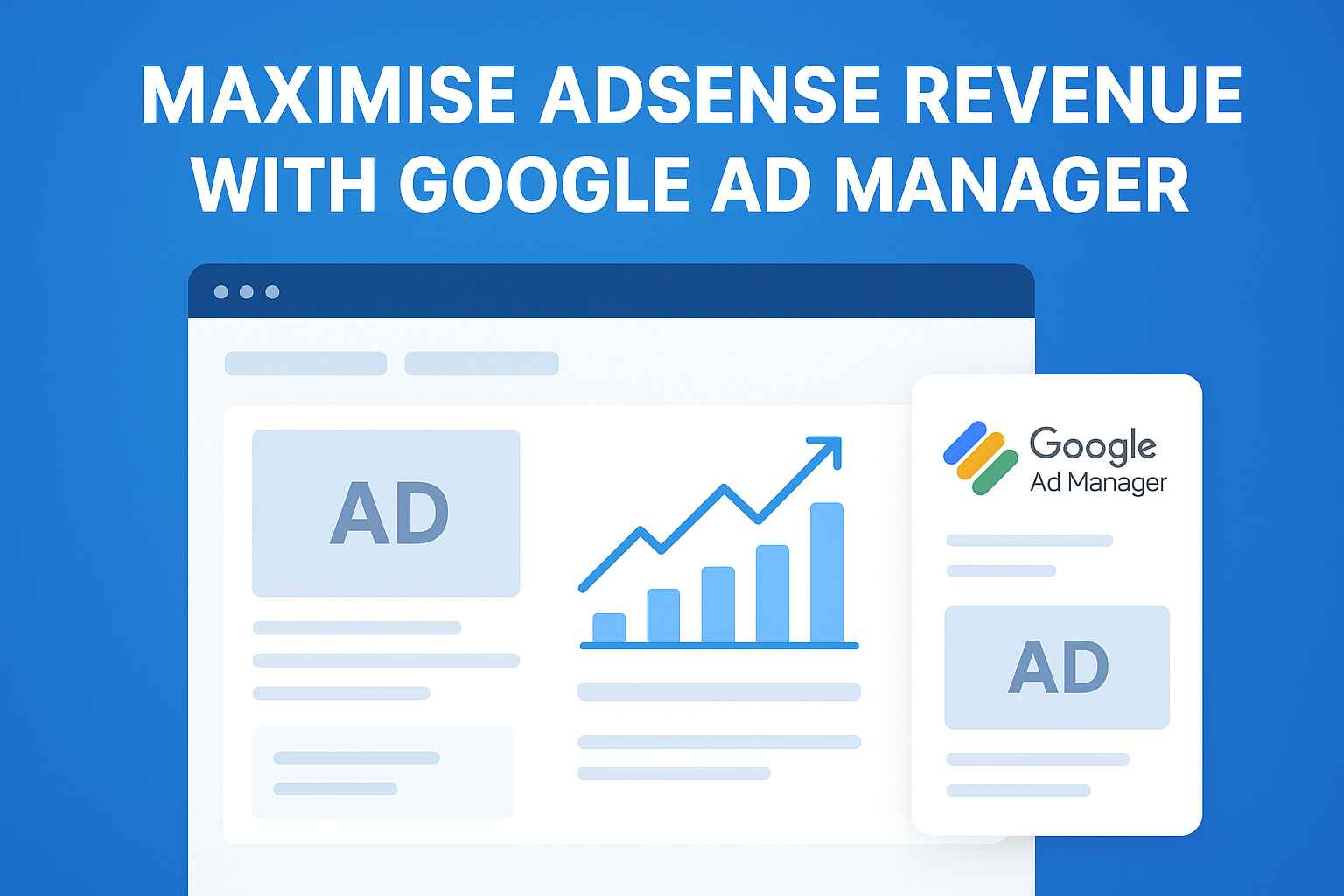
If you are already earning money with Google AdSense but feel your revenue is stuck, Google Ad Manager (GAM) can be a game-changer. Many publishers don’t realize that Ad Manager works with AdSense — not against it — and helps you earn more from the same traffic.
In this guide, you’ll learn how to maximise AdSense revenue using Google Ad Manager, even if you are a beginner or running a custom site (WordPress, Laravel, or any framework).
What Is Google Ad Manager?
Google Ad Manager is an advanced ad-serving and optimisation platform from Google. It allows publishers to:
-
Control ad placements more precisely
-
Optimize competition between AdSense and other demand sources
-
Improve ad fill rate and CPM
-
Track detailed ad performance
👉 Important: Google Ad Manager does not replace AdSense. Instead, AdSense becomes one demand source inside Ad Manager.
Why Use Google Ad Manager with AdSense?
Here’s why serious publishers switch to Ad Manager:
✅ Better Revenue Control
You decide where, how, and which ads appear on your site.
✅ Higher CPMs
Ad Manager allows competition between demand sources, often increasing CPM.
✅ Professional Ad Layouts
You can design clean, policy-safe ad placements without hurting user experience.
✅ Scalable Monetization
Perfect for blogs, news sites, and content-heavy platforms.
AdSense vs Google Ad Manager (Quick Comparison)
Feature AdSense Google Ad Manager Ease of use Very easy Medium Revenue control Limited Advanced Ad placement Automatic/manual Fully customizable Best for Beginners Growth & scaling
| Feature | AdSense | Google Ad Manager |
|---|---|---|
| Ease of use | Very easy | Medium |
| Revenue control | Limited | Advanced |
| Ad placement | Automatic/manual | Fully customizable |
| Best for | Beginners | Growth & scaling |
Best strategy: Use AdSense inside Google Ad Manager.
Step 1: Link AdSense with Google Ad Manager
To maximise revenue, you must link both platforms correctly.
Steps:
-
Log in to Google Ad Manager
-
Go to Admin → Linked accounts
-
Link your approved AdSense account
-
Enable AdSense as a demand source
Log in to Google Ad Manager
Go to Admin → Linked accounts
Link your approved AdSense account
Enable AdSense as a demand source
✔️ This allows AdSense to compete fairly for every ad impression.
Step 2: Create High-Performance Ad Units
Use responsive ad units to maximize earnings across devices.
Recommended Ad Sizes:
-
728×90 (Leaderboard)
-
300×250 (Medium Rectangle)
-
336×280 (Large Rectangle)
-
320×100 (Mobile Banner)
-
Responsive Ads (Highly recommended)
728×90 (Leaderboard)
300×250 (Medium Rectangle)
336×280 (Large Rectangle)
320×100 (Mobile Banner)
Responsive Ads (Highly recommended)
📌 Tip: Always prioritise above-the-fold placements.
Step 3: Best Ad Placements That Increase Revenue
Strategic placement matters more than the number of ads.
High-Converting Placements:
-
Below header (not inside header)
-
After first paragraph
-
Mid-content (every 6–8 paragraphs)
-
Sidebar (desktop only)
-
Sticky bottom ad (mobile – policy-safe)
Below header (not inside header)
After first paragraph
Mid-content (every 6–8 paragraphs)
Sidebar (desktop only)
Sticky bottom ad (mobile – policy-safe)
⚠️ Avoid:
-
Pop-ups
-
Auto-redirect ads
-
Ads too close to buttons or navigation
Step 4: Use Ad Manager Line Items Correctly
Inside Google Ad Manager:
-
Create AdSense line items
-
Set CPM to $0.01 (so AdSense competes freely)
-
Priority type: AdSense
-
Inventory type: Bulk or Price Priority
This ensures maximum fill rate and competition.
Step 5: Enable Targeting & Optimization
To boost AdSense performance:
-
Enable Key-value targeting
-
Use content categories
-
Separate mobile and desktop inventory
-
Block low-quality ad categories
📈 Result: Higher CTR + better advertiser bids.
Step 6: Improve Page Speed (Revenue Multiplier)
Slow sites earn less — guaranteed.
Speed Tips:
-
Lazy-load ads
-
Compress images
-
Use a CDN
-
Reduce unnecessary scripts
Lazy-load ads
Compress images
Use a CDN
Reduce unnecessary scripts
Fast sites = better user experience = higher CPM.
Step 7: Follow AdSense Policies Strictly
To protect long-term revenue:
-
Never click your own ads
-
Avoid misleading layouts
-
Don’t place ads near download buttons
-
Publish original, family-safe content
🚨 Policy violations can reduce earnings or suspend accounts.
Common Mistakes That Reduce AdSense Revenue
❌ Too many ads
❌ Poor mobile layout
❌ Thin or AI-only content
❌ Ignoring Core Web Vitals
❌ No internal linking
Fixing these alone can increase earnings by 20–40%.
Final Thoughts
If you want to seriously maximise AdSense revenue, Google Ad Manager is not optional — it’s essential. With proper setup, clean placements, and policy-safe optimization, you can earn more from the same traffic without harming user experience.
Start small, test placements, analyse reports, and scale smartly.






)